Showing posts with label Tips & Tricks. Show all posts

Saturday, 5 December 2015

Wednesday, 2 December 2015

The Computer Tricks You Should Try now

==>Interesting PC tricks you should try now... :) 
Note Pad Trick : 
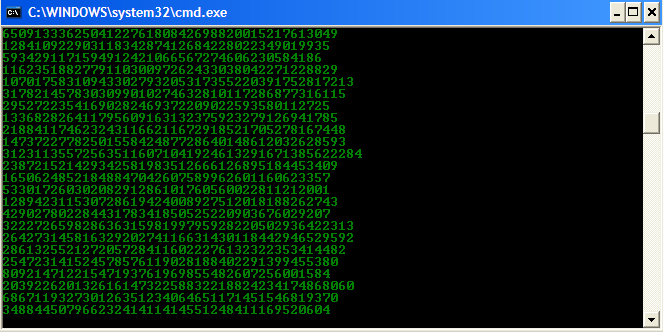
1 : open your  notpad and paste the code given below into the notpad and save the document with .bat extension.
for example matrix.bat

@echo off
color 02
:tricks
echo %random%%random%%random%%random%%random%%random%%random%%random%

goto tricks
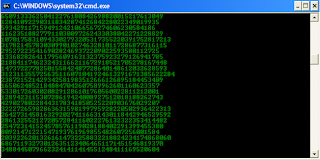

Notepad tricks Result... :)


==>Hey Friends Now You Can see The movie on your command prompt... :O
Yes it's true... !
Just Try the steps given Below : 
1 : Open command prompt Start+run+cmd or windows+r and type cmd in the run box. 
2 : Now type the code in the command prompt given below and see the magic... ! ;) 
telnet towel.blinkenlights.nl
https://blogger.googleusercontent.com/img/b/R29vZ2xl/AVvXsEjo5Hft5nFjIc2JoWBC5wSEaYUjHvc9VdYsf3Tsq1F2luaGC1rHMkz154DBlvX7ArFAH4q-BCJLcCBY4Pq58nSsdUyitht0poG41Ef84CfcBDb3mOBSMtn5QH7Sk06Ik-KeIVHj2C82efXf/s320/Star+wars.JPGResult


==>Make your Computer Talk
Have you ever wondered how can you make your computer speak whatever you input to it like in the movies? Would it not be fun? If only it was possible! Rejoice, because now it is possible. Well, if you wish to know how to do this, then you have come to the right place. With this trick, you can create a script in Windows which will make your computer speak whatever you input to it.

To create one such talk script, follow the steps given below:-

       Make your Computer Talk

Steps
  1. Open Notepad.
  2. Copy and paste the exact code given below.
          Dim Message, Speak
          Message=InputBox("Enter text","Speak")
          Set Speak=CreateObject("sapi.spvoice")
          Speak.Speak Message
    3. Click on File Menu, Save As, select All Types in Save as Type option, and save the file as Speak.vbs or "*.vbs".
    4.  Double click on the saved file, a window will open like the one in the image. Enter some text in enter text column and click OK.

Now your Computer will speak / talk what you typed in Step 4. Try it yourself.

==> Cool Keyboard Tricks (Windows) : Make a Disco (You'll  SurprIsEd) 
Keyboards usually have small LEDs which indicate whether different types of locks are activated or not. Here is a trick to use the lights of your keyboard in a more creative manner in Windows.

This trick uses a simple Visual Basic Script which when activated makes your Scroll lock, Caps lock and Num lock LEDs flash in a cool rhythmic way which gives the perception of a live disco on your keyboard.

To make your own live disco, follow the steps given below:-

1. Open Notepad.
2. Copy paste the exact code given below:-

Set wshShell =wscript.CreateObject("WScript.Shell")
do
wscript.sleep 100
wshshell.sendkeys "{CAPSLOCK}"
wshshell.sendkeys "{NUMLOCK}"
wshshell.sendkeys "{SCROLLLOCK}"
loop
3. Save the file as Disco.vbs or "*.vbs".


Saturday, 14 November 2015

Google Interesting and Funny Tricks.

Google Tricks
Here We'll discuss 10 Funny and Interesting google Tricks.... !
Are You Ready...!
So Let's Start.... :)

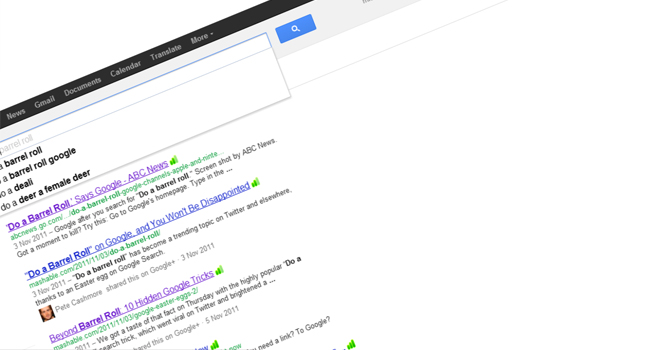
1: Do a barrel roll 

Simply search “do a barrel roll” — if you have Google’s instant results functions enabled, your results page will be spinning before you’ve completed the instruction.
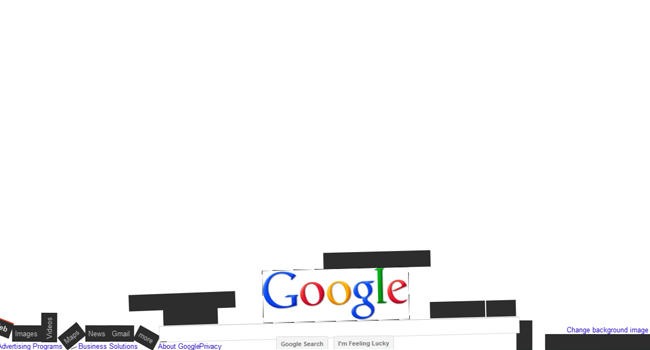
2 : Google Gravity 

If, by any chance, you feeling like searching “Google gravity” and hitting “I’m feeling lucky”, don’t be surprised if Google comes crashing down around you the second you move the mouse. (Hint: you can disable Google’s instant results in your account preferences page to make sure you get the ‘I’m feeling lucky’ option).
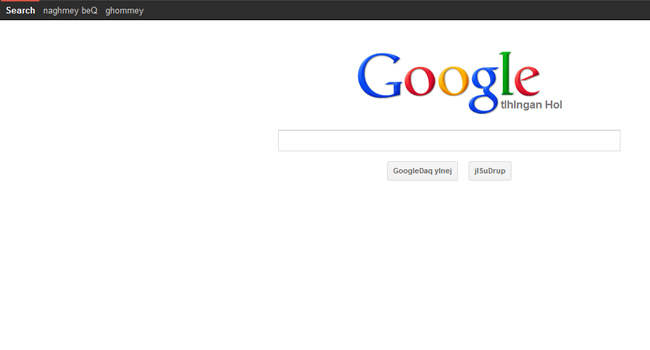
3 : Klingon
So “GoogleDaq ylnej” means “Google search”. Hmmm. Who knew? Well, you, if you speak Klingon. Yes, there is a Klingon version of Google. There is also a pirate and Elmer Fudd version, if that’s more your thing.
4 : Antarctic Penguins:

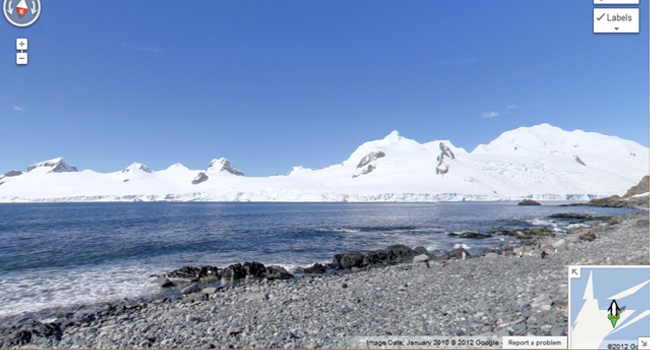
If you ever want to creep the Antarctic on Google Maps, you may be surprised to find the little orange peg man you drag and drop to change to Google Street View has transformed into a fat little penguin. Awwww.
5 : Doodles:

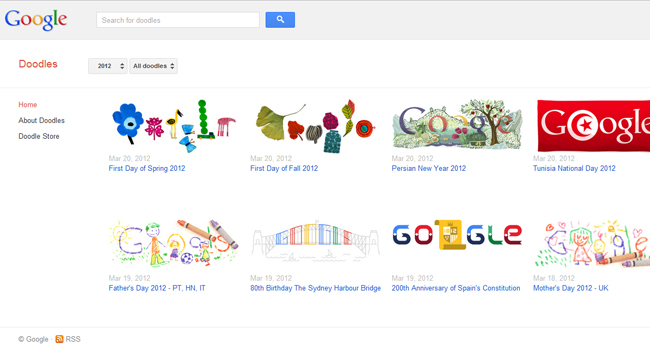
What do you get if you don’t actually search for anything, and just hit ‘I’m feeling lucky’? A catalogue of all the Google doodles — all the way back to 1998. There were just three in that year — there have already been 69 in 2012.
6 : Pacman

It started out as a Google doodle to commemorate the 30th anniversary of Pacman in 2010, but the Google Pacman game was so popular.
7 :  You’ll never find Chuck Norris

Because Chuck Norris jokes never get old, there is a warning hidden in Google search results to ward off those who dare to attempt to find him. Just search ‘find Chuck Norris’ and hit ‘I’m feeling lucky’ and you’ll see what I mean.
8 : Epic Google 
When you do this.
the Epic google will become more larger time to time. :)
9 : Google Rainbow
Google will become like above. 
10 : Google sphere 
When you search for "Google sphere" n hit on i'm feeling lucky. then everyting will be go here and there on the page. ;) 
So how is it.... !
juSt comments ur Opinions...
Bye haVe a good daY...